
Guide to enrolment
Contents:
1. How to access the platform
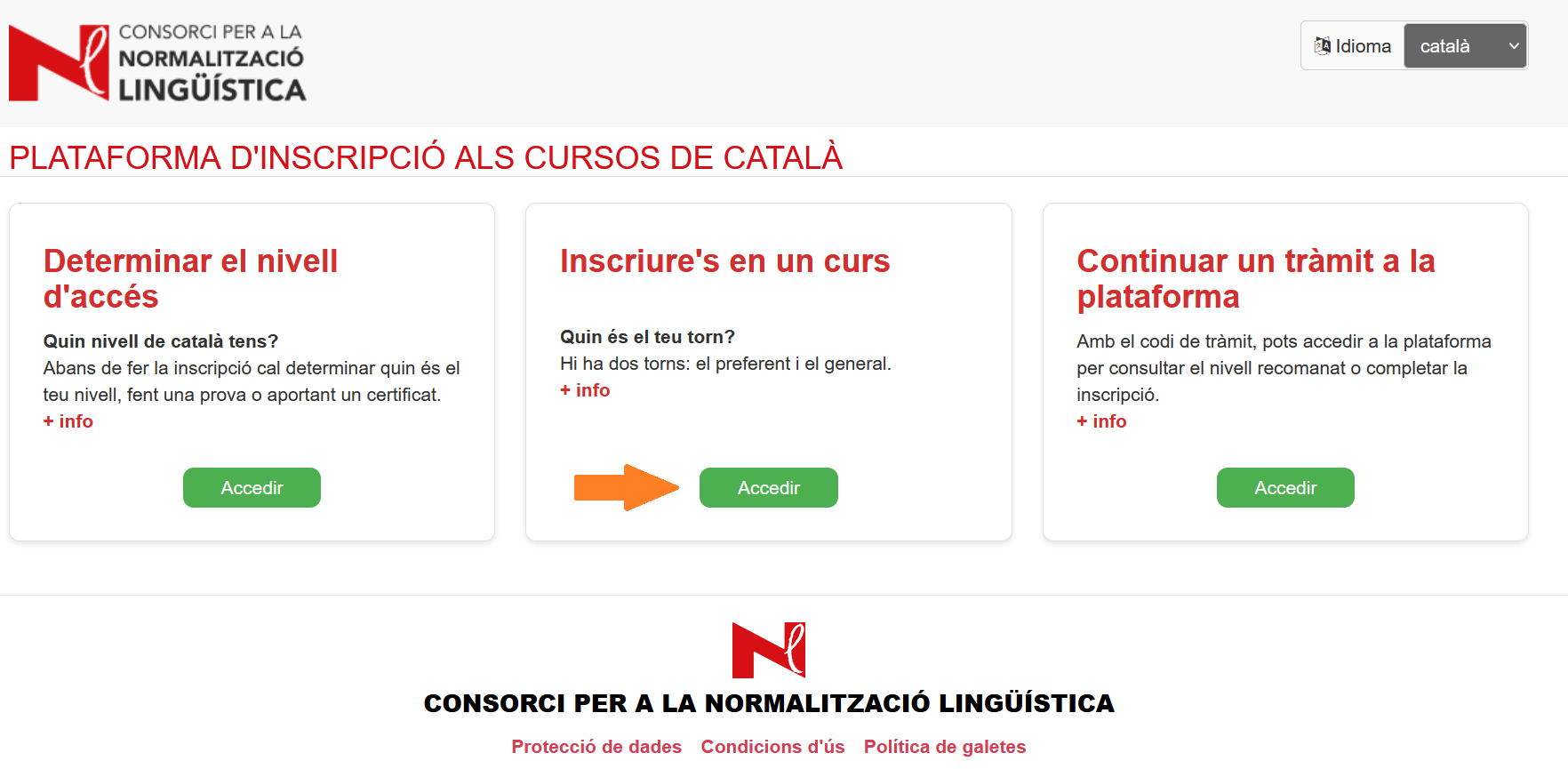
Go to the registration platform for Catalan courses, go to Register for a course and click Access.
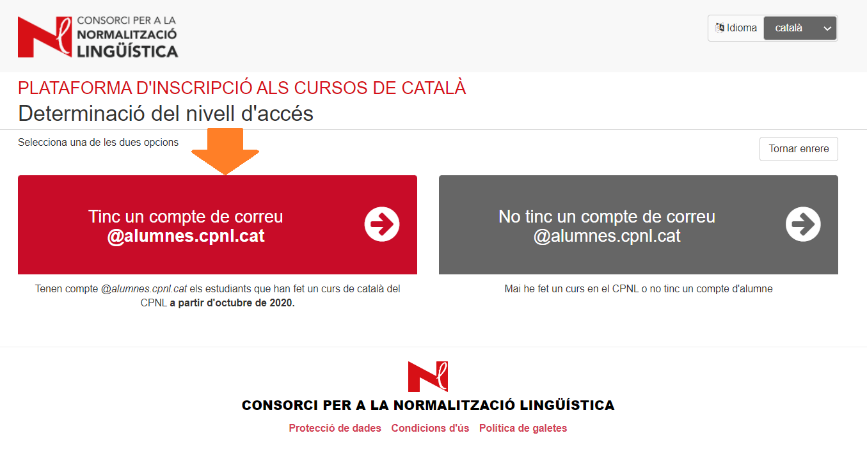
If you already have a student account
Go to I already have an @alumnes.cpnl.cat email account.
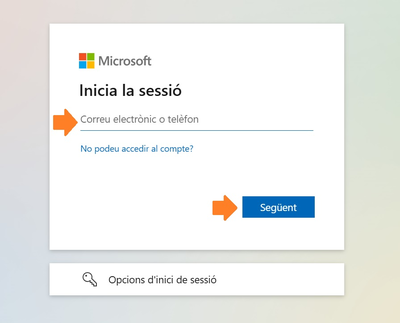
The app will redirect you to the Microsoft Office log in.
Remember that you have to close the session on your private Office account in your browser or open a new window to start an Office session using your CPNL account.
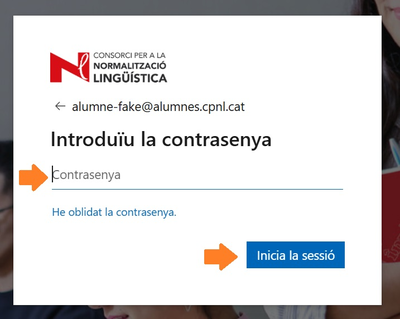
Enter your password and click Start session.
A process code will be created to identify your application.
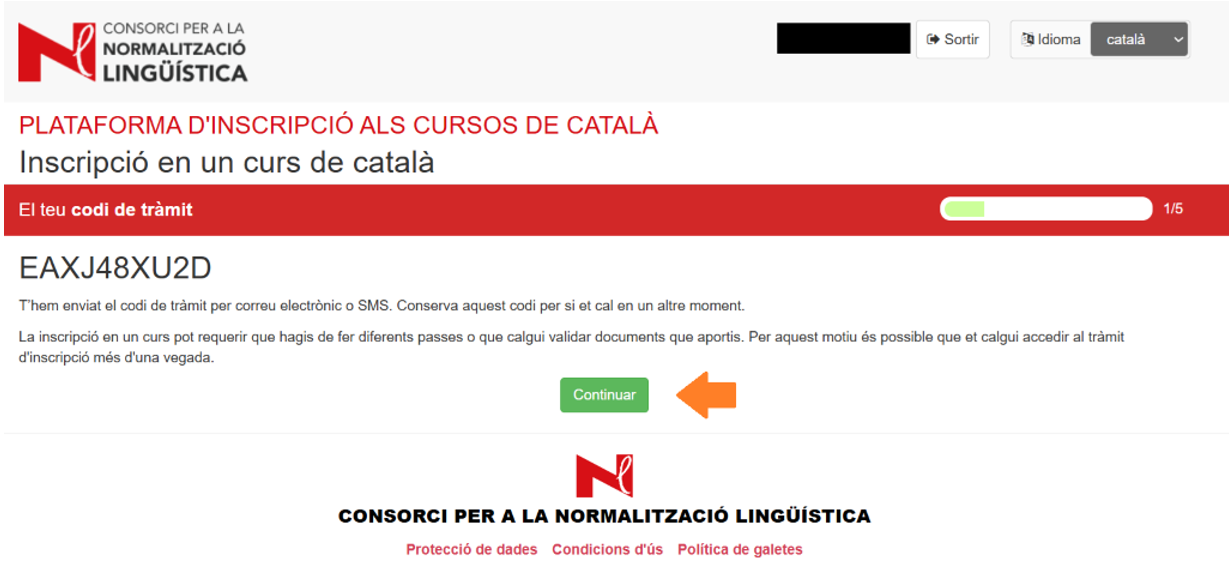
You can also access it from I don’t have an @alumnes.cpnl.cat email account
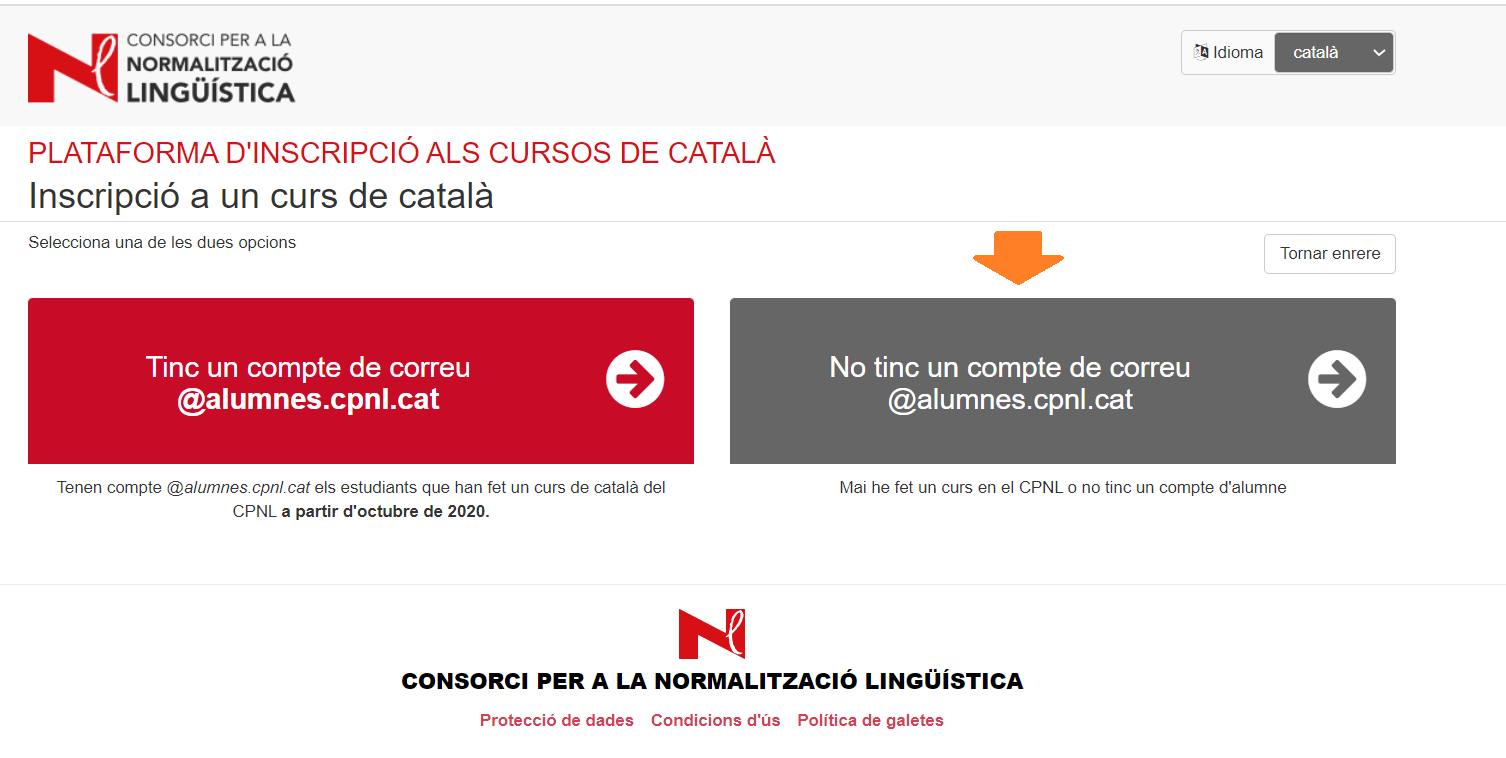
If you don’t have a student account
Select I don’t have an @alumnes.cpnl.cat email account.
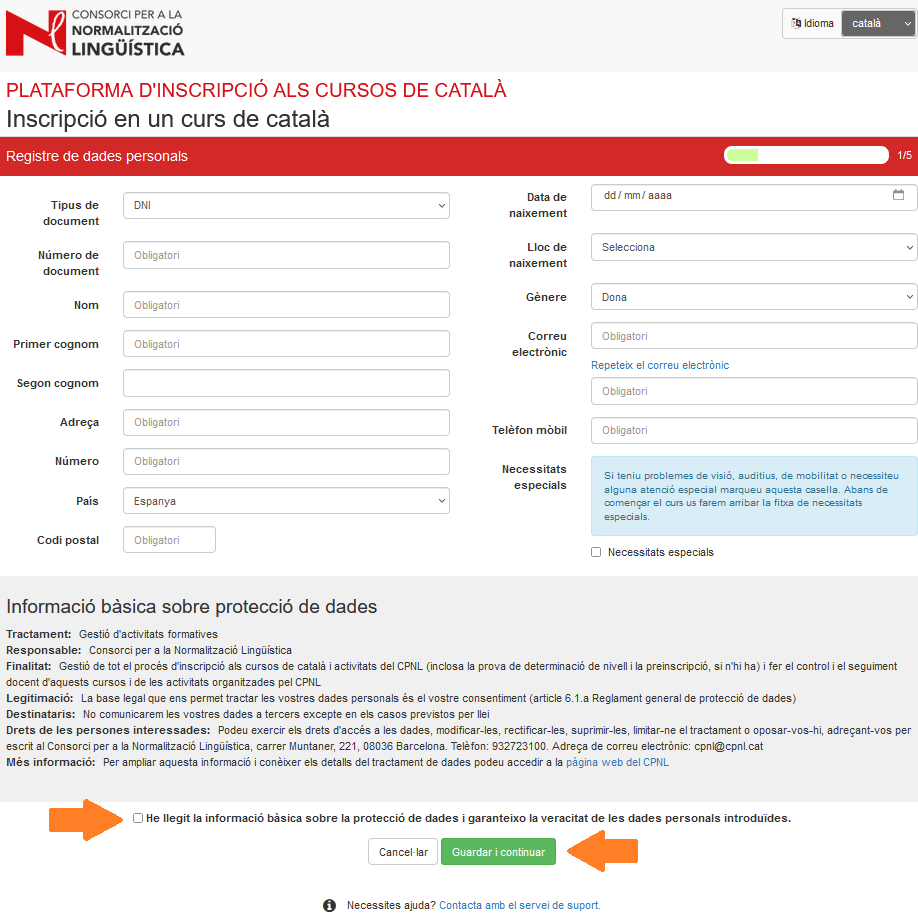
Fill in the form with your details.
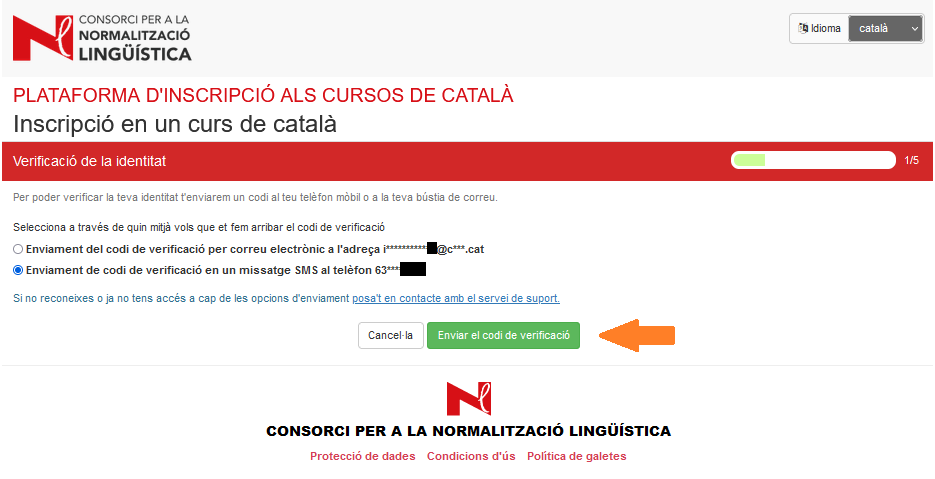
Select the email address or mobile number to receive the verification code to confirm your identity.
Enter the verification code.
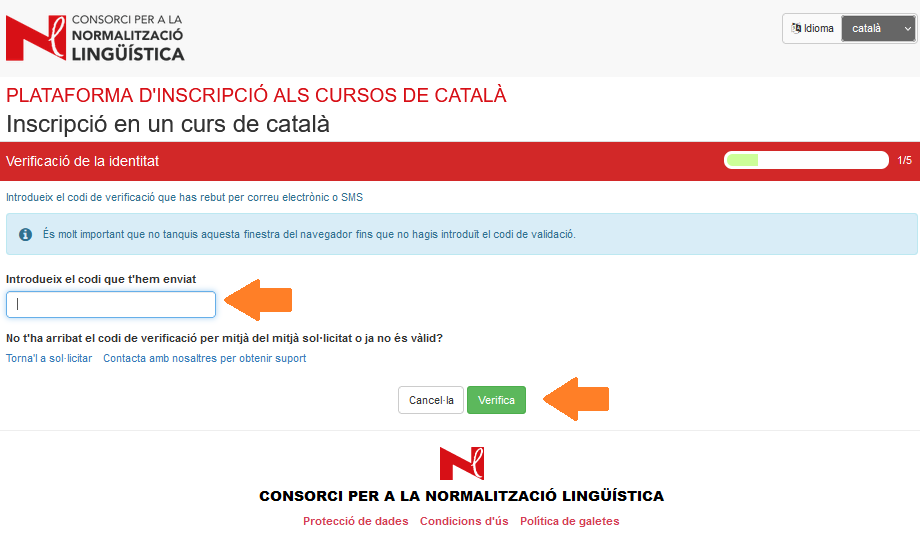
A process code will be created to identify your application. You’ll get this code in the inbox of the email address or mobile number you provided when you started the registration process. Save this to log back into the application if necessary.
If you have a process code
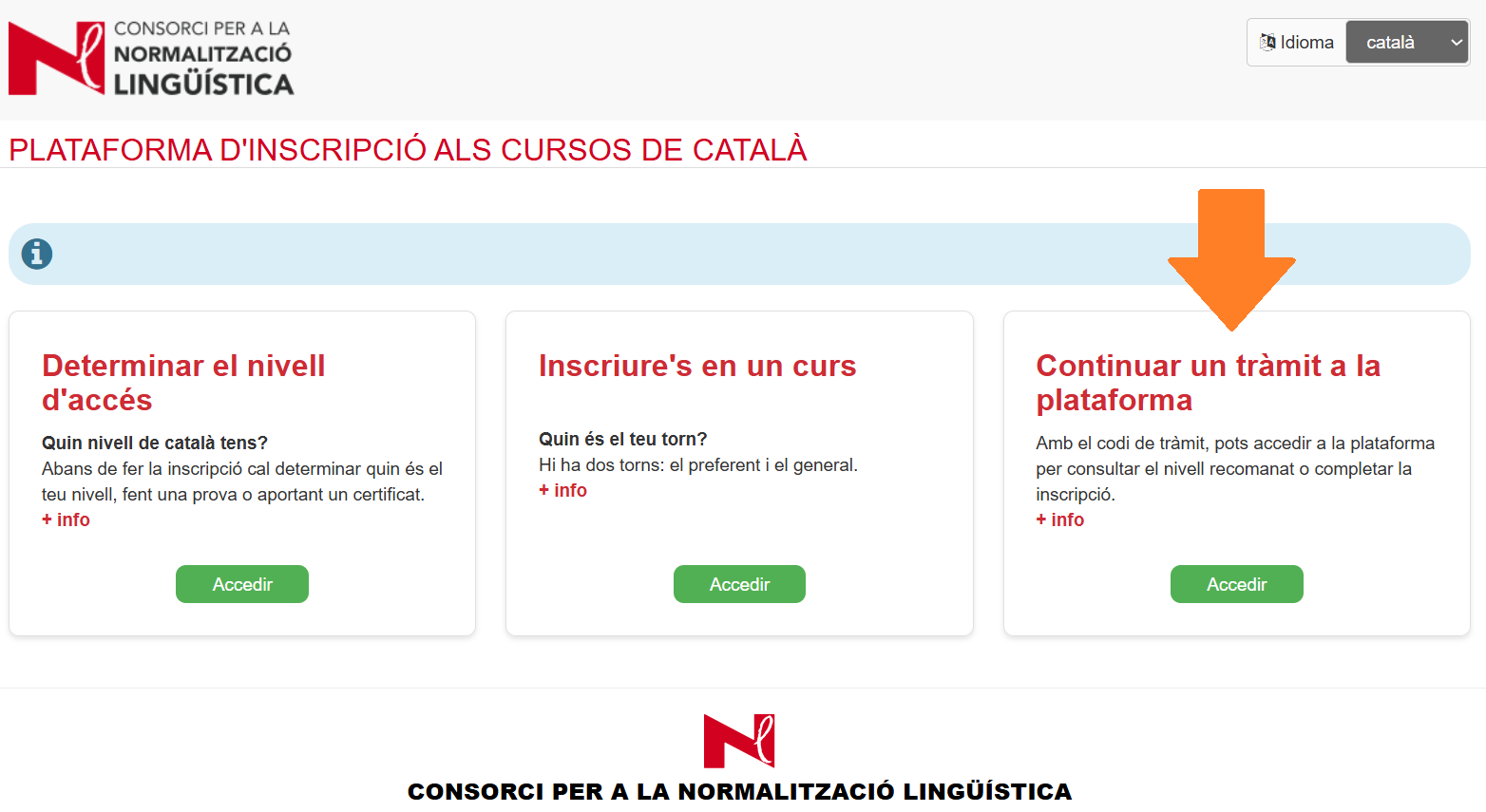
Go to the registration platform for Catalan courses, go to Continue a process on the platform and click Access.
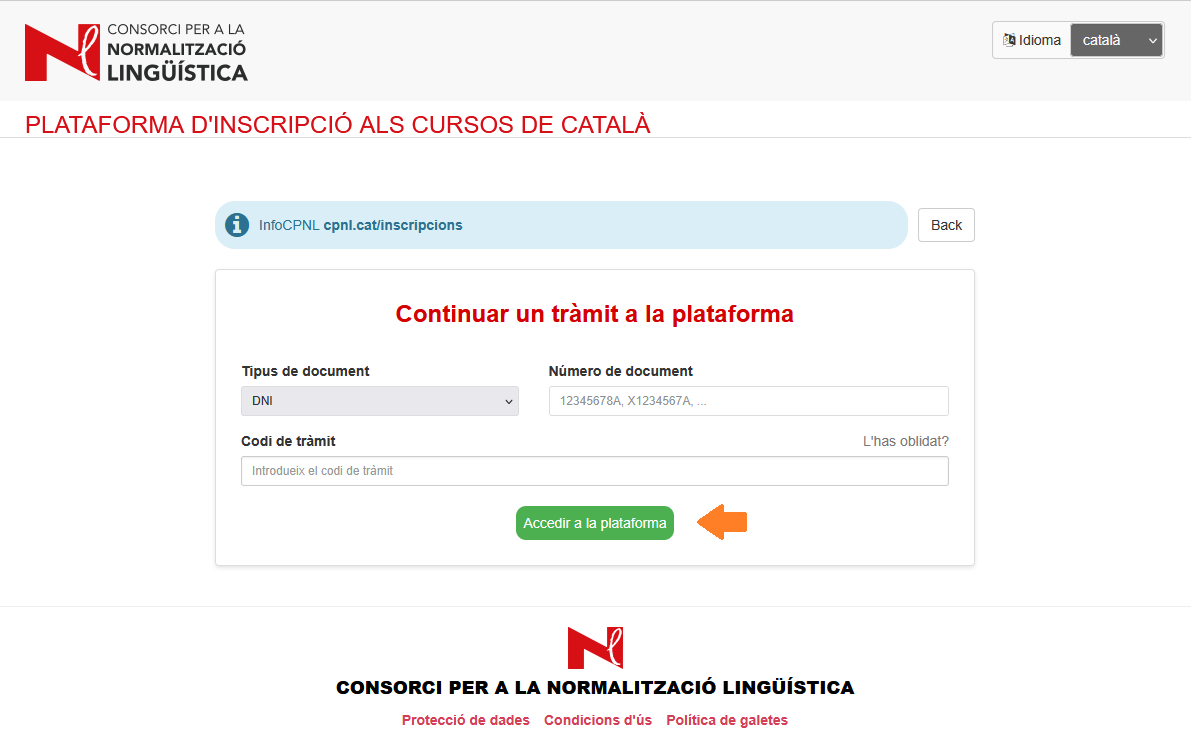
Fill in the details and click Access the platform.
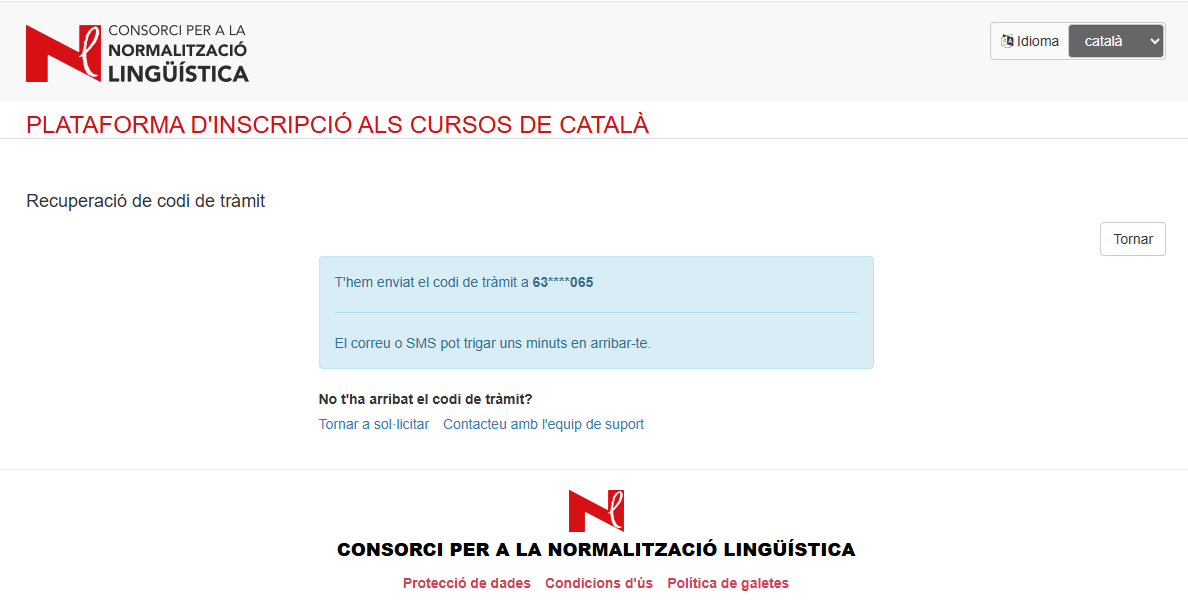
If you do not have a process code, click on Forgotten your process code?
You’ll get the process code in the inbox of the email address or mobile number you provided when you started the registration process. If the mobile number or email address shown on the screen is incorrect, please contact User Services.
2. How to select a course
Select the town/city. You can also filter by type of course.
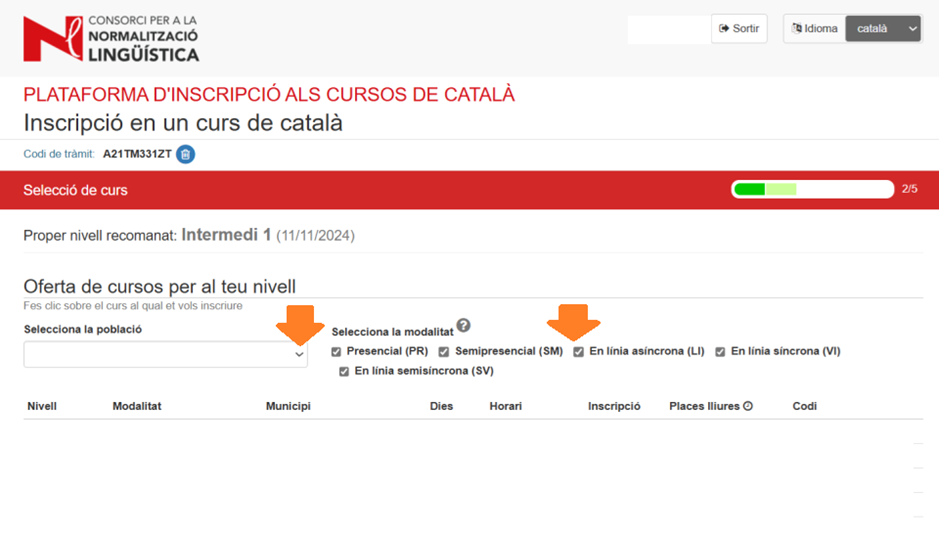
Select the course that suits you best.
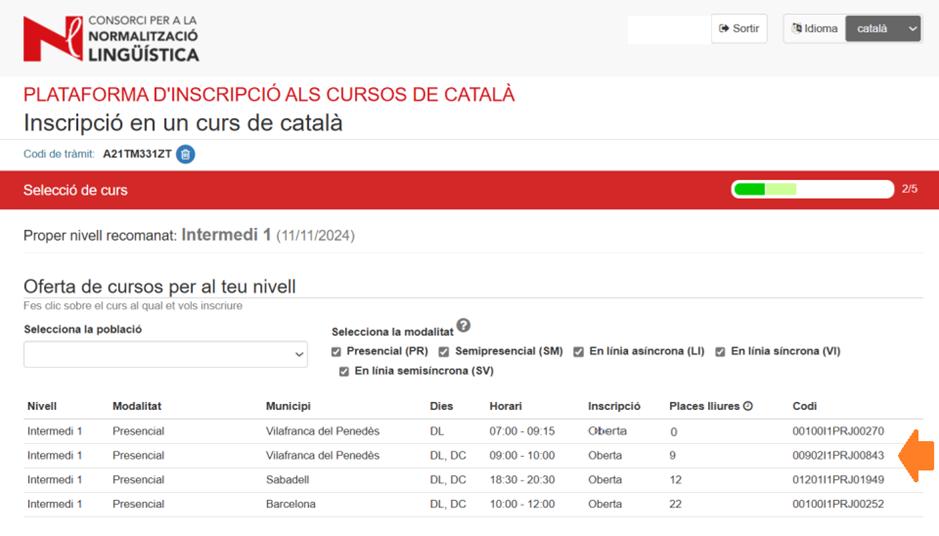
If you can't find a course at your level, check that the current registration period is for the level you want to register for. Check the search engine for the levels offered during this period.
3. How to complete the registration process
Beginner and Basic level courses
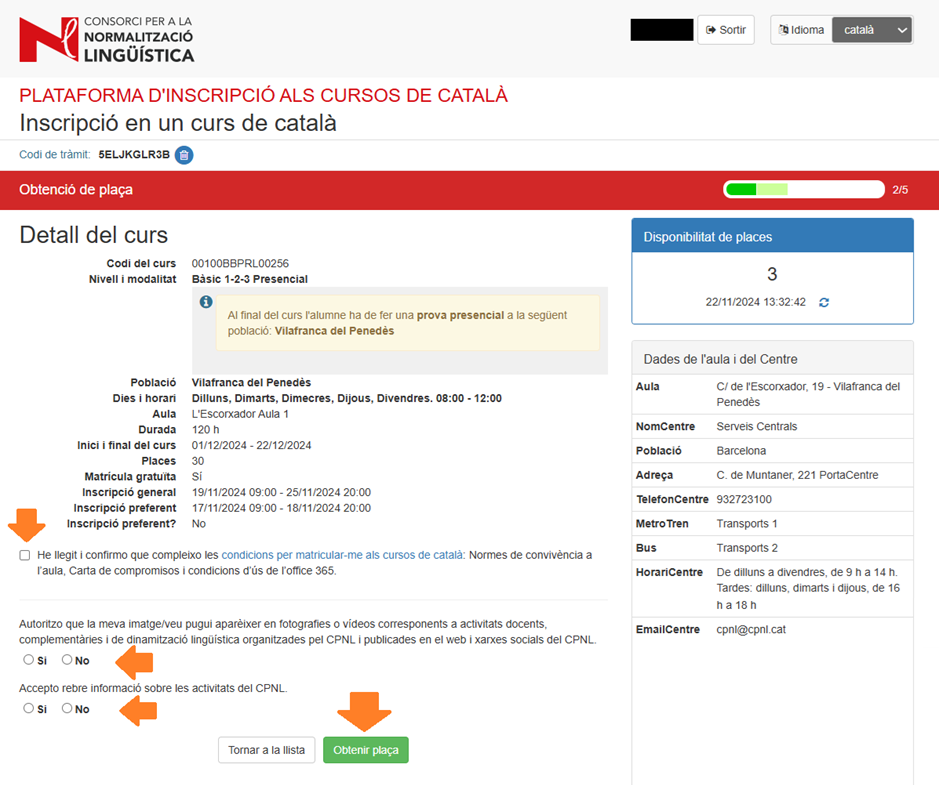
Check that the selected course is the one you want and read the description carefully. Indicate that you have read the terms and conditions to enrol and accept the rest of the options or not.'
Click Get a place or Go back to the list if you wish to choose another course.
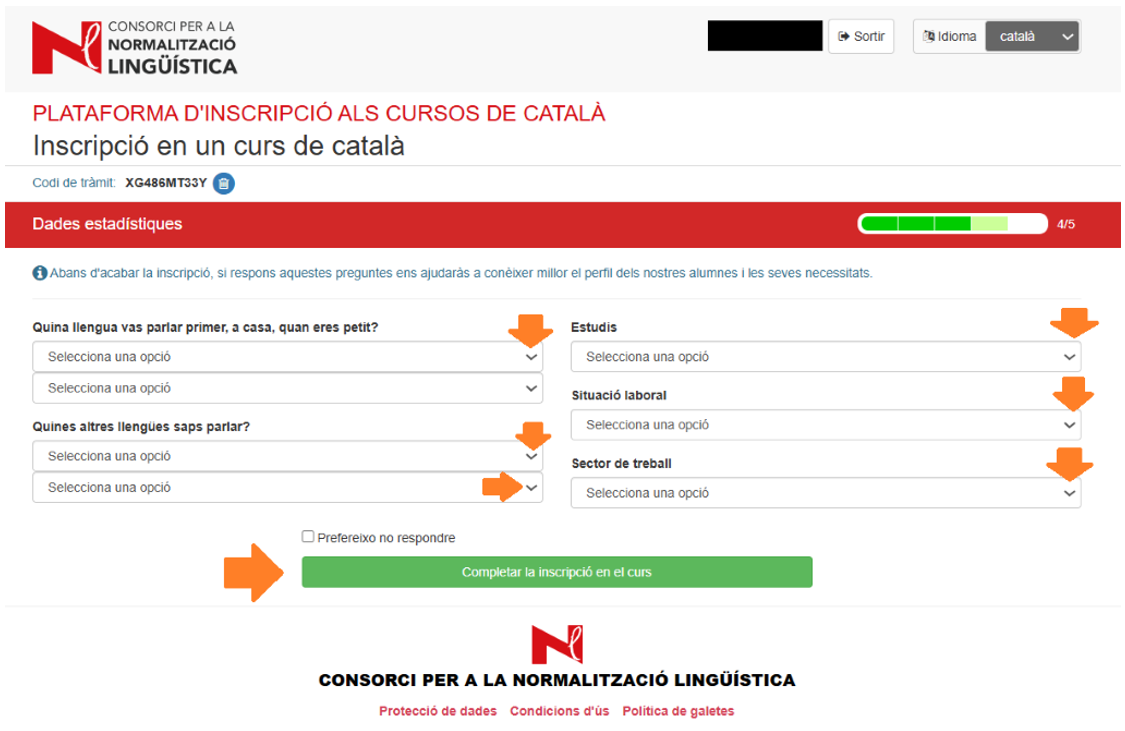
Complete the statistical data by answering the questions and click Complete registration for the course.
To confirm your registration, click Next.
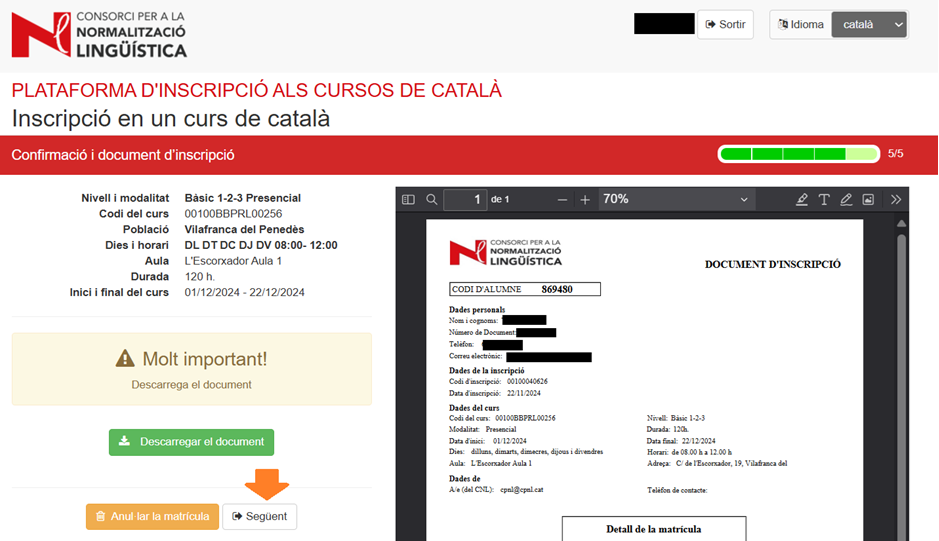
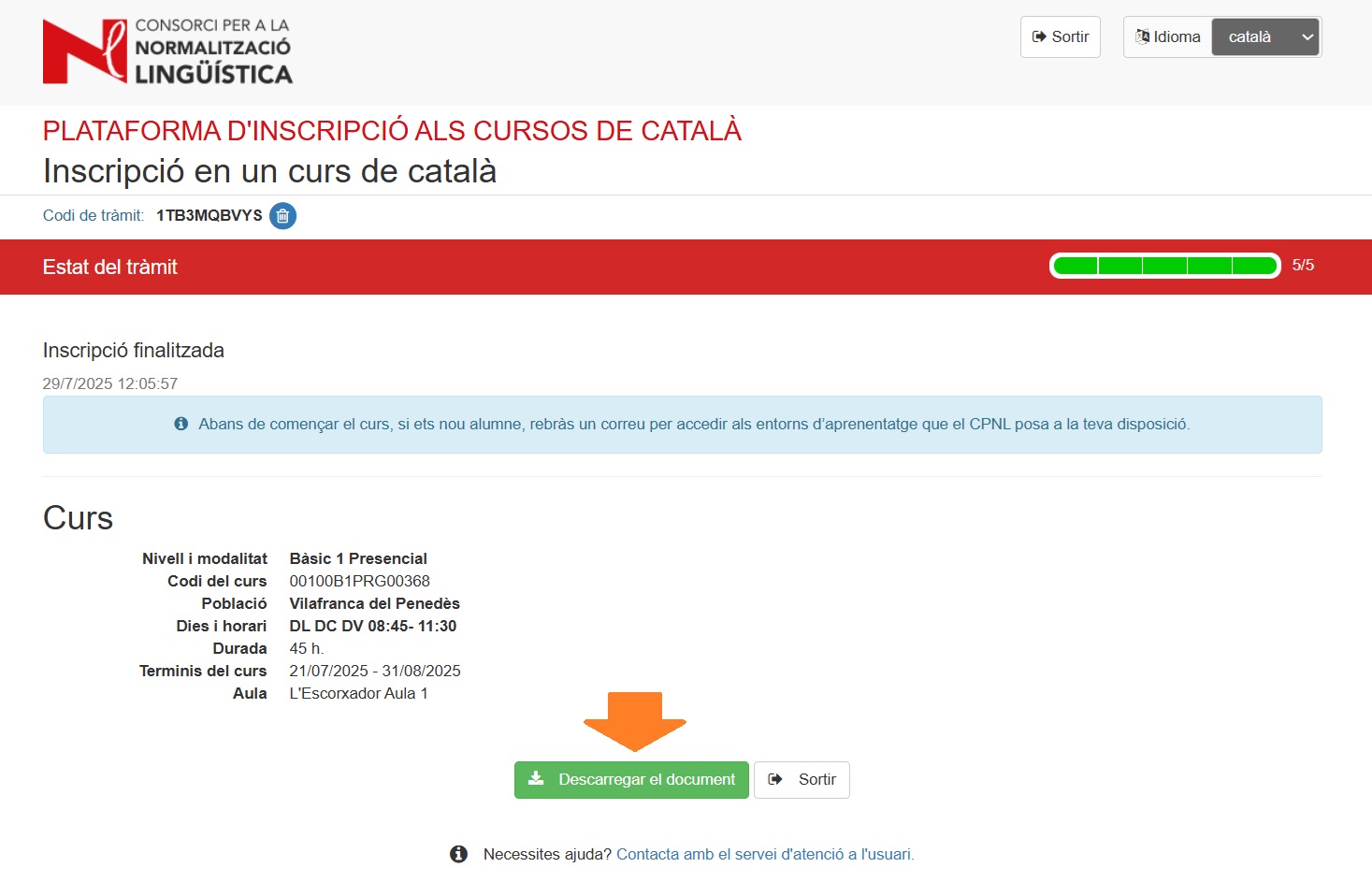
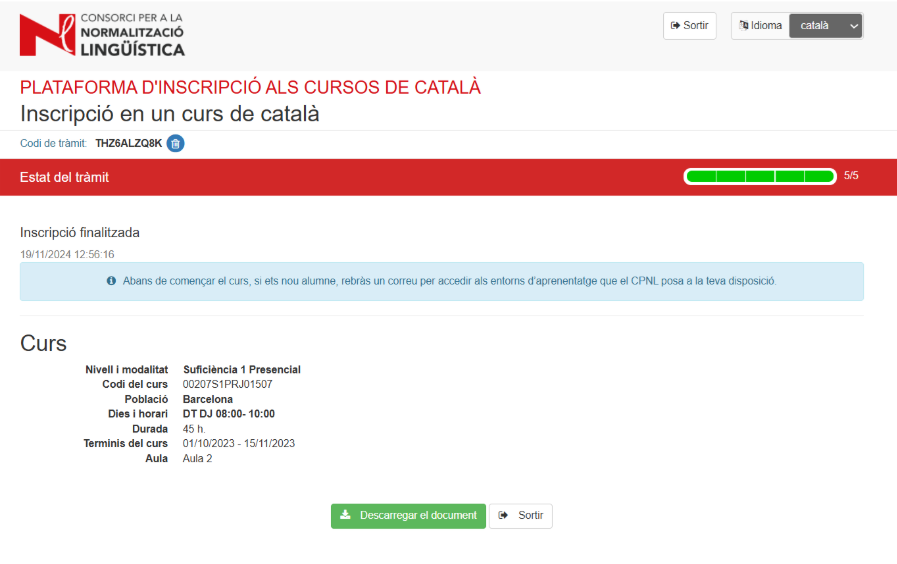
The screen will show you that registration has been completed.
Download the document with all the course information. You’ll get a copy by email.
Other levels (from B1 to C2)
Check that the selected course is the one you want and click Get a place or click Go back to the list if you wish to choose another one.
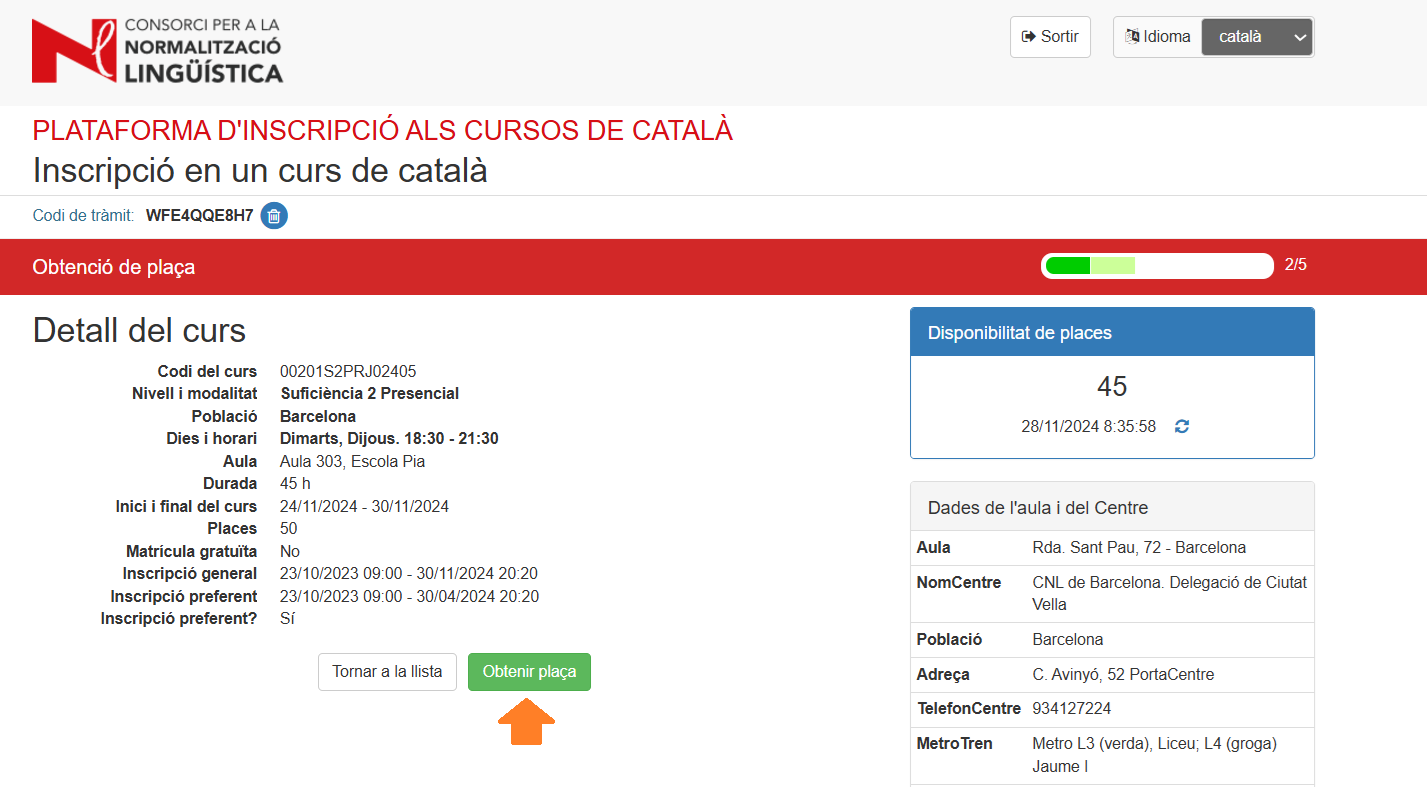
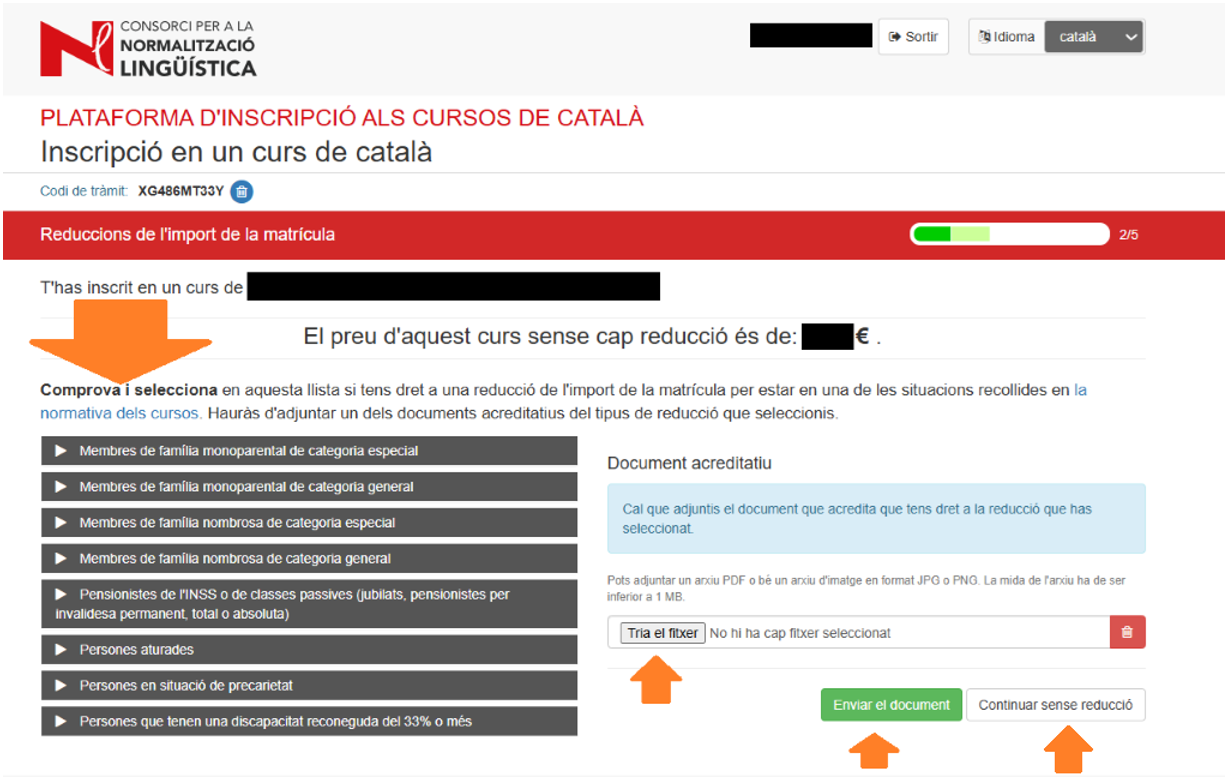
If you're eligible for a discount on your tuition fees, choose the option that best describes your situation and attach a valid document accrediting your eligibility.
Once the documentation you've submitted has been reviewed, you’ll get a notice informing you that the process has been updated so you’ll be able to access the platform using the registration process code. You’ll get this notice in the inbox of the email address or mobile number you provided when you started the registration process.
If you’re not eligible for a discount, click Continue without a discount.
Check the details and the price of the course (with or without a discount) and confirm registration to download the payment document.
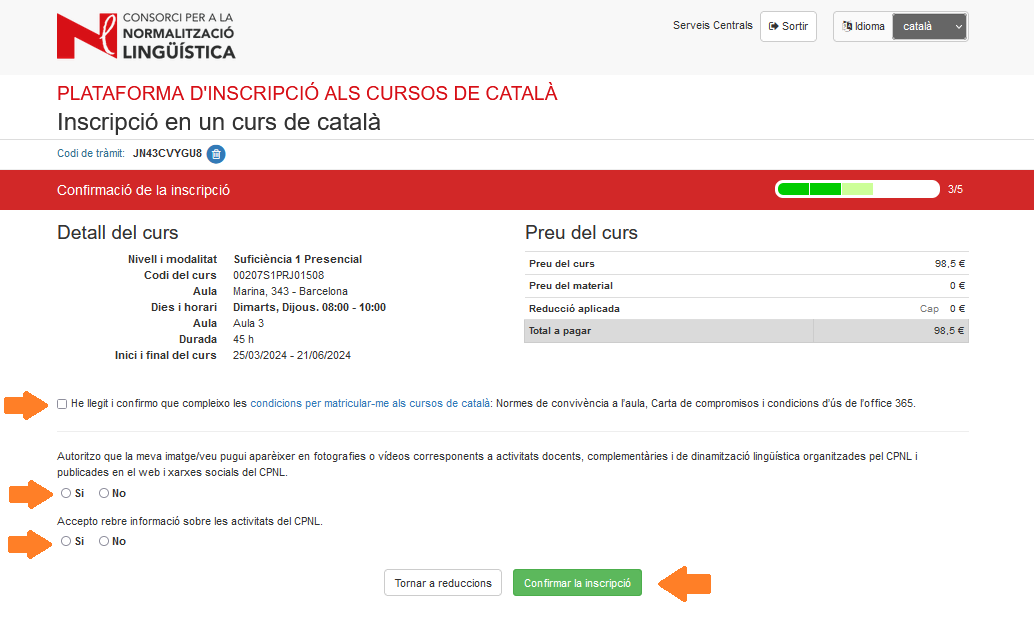
Complete the statistical data by answering the questions and click Complete registration for the course.
To continue with registration, click Next.
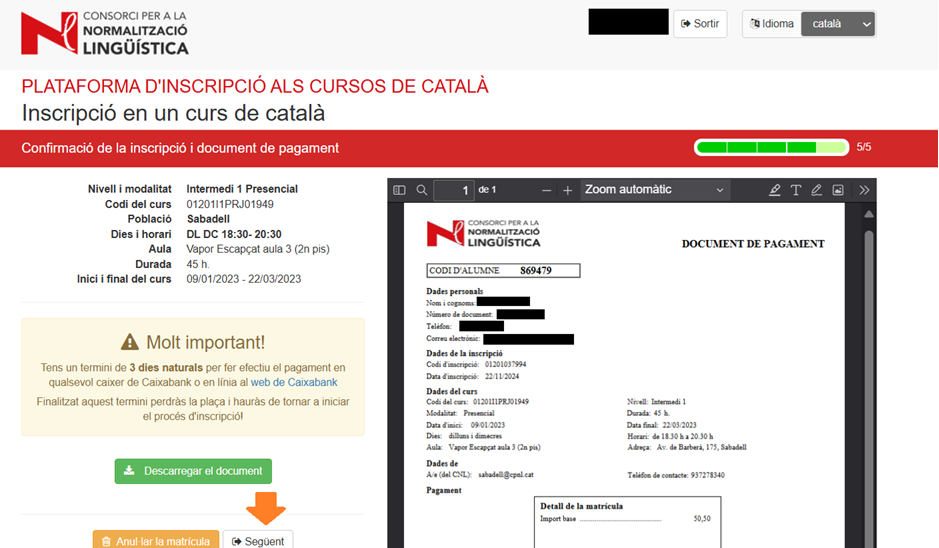
Download the document and follow the payment instructions. You’ll get a copy by email.
The screen will show you that the registration is pending payment.
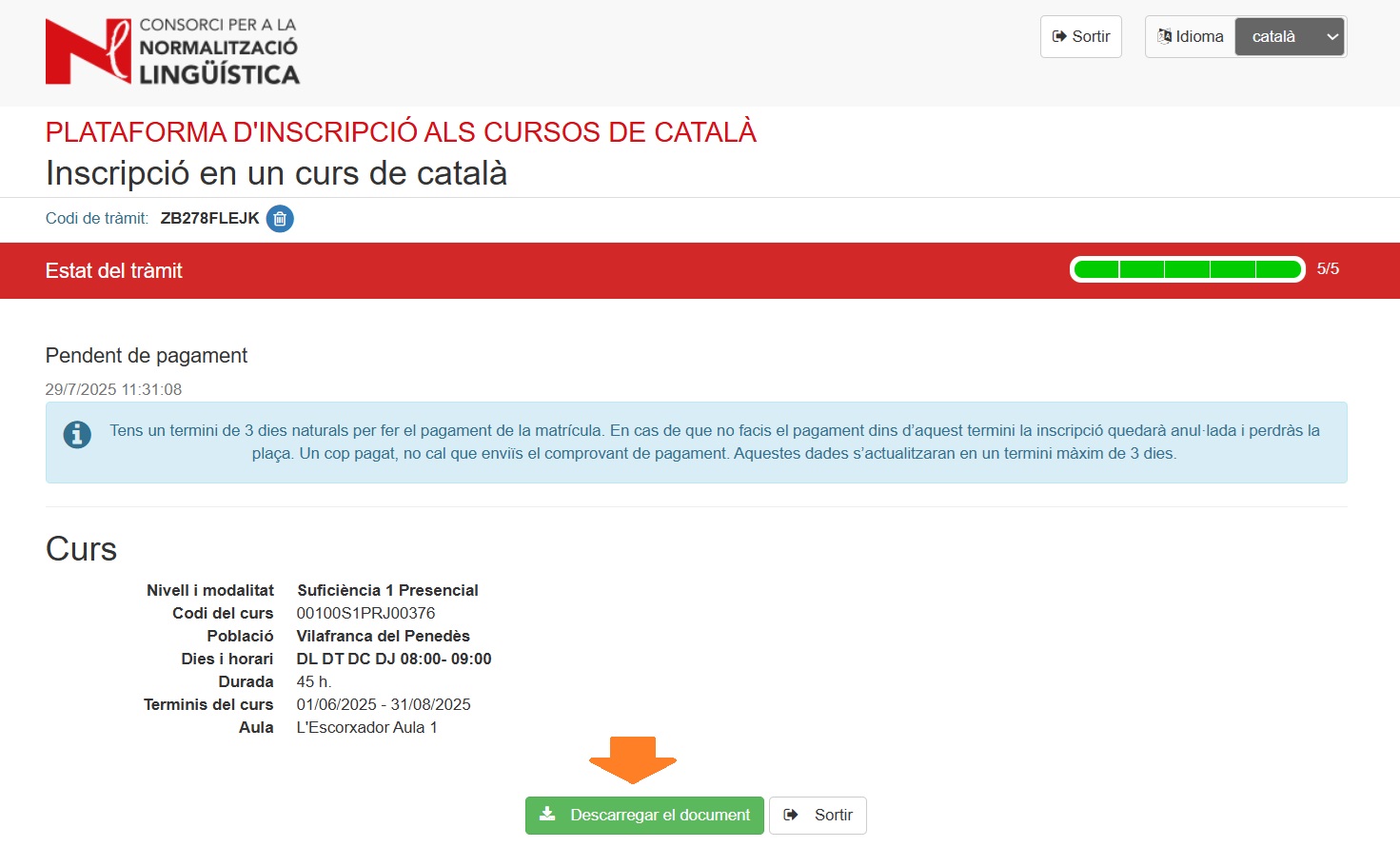
Once payment has been made, the registration status will be updated within 3 days at most.
4. How to sign up to the list of people without a place
Once you've accessed the platform, select the course that suits you best.
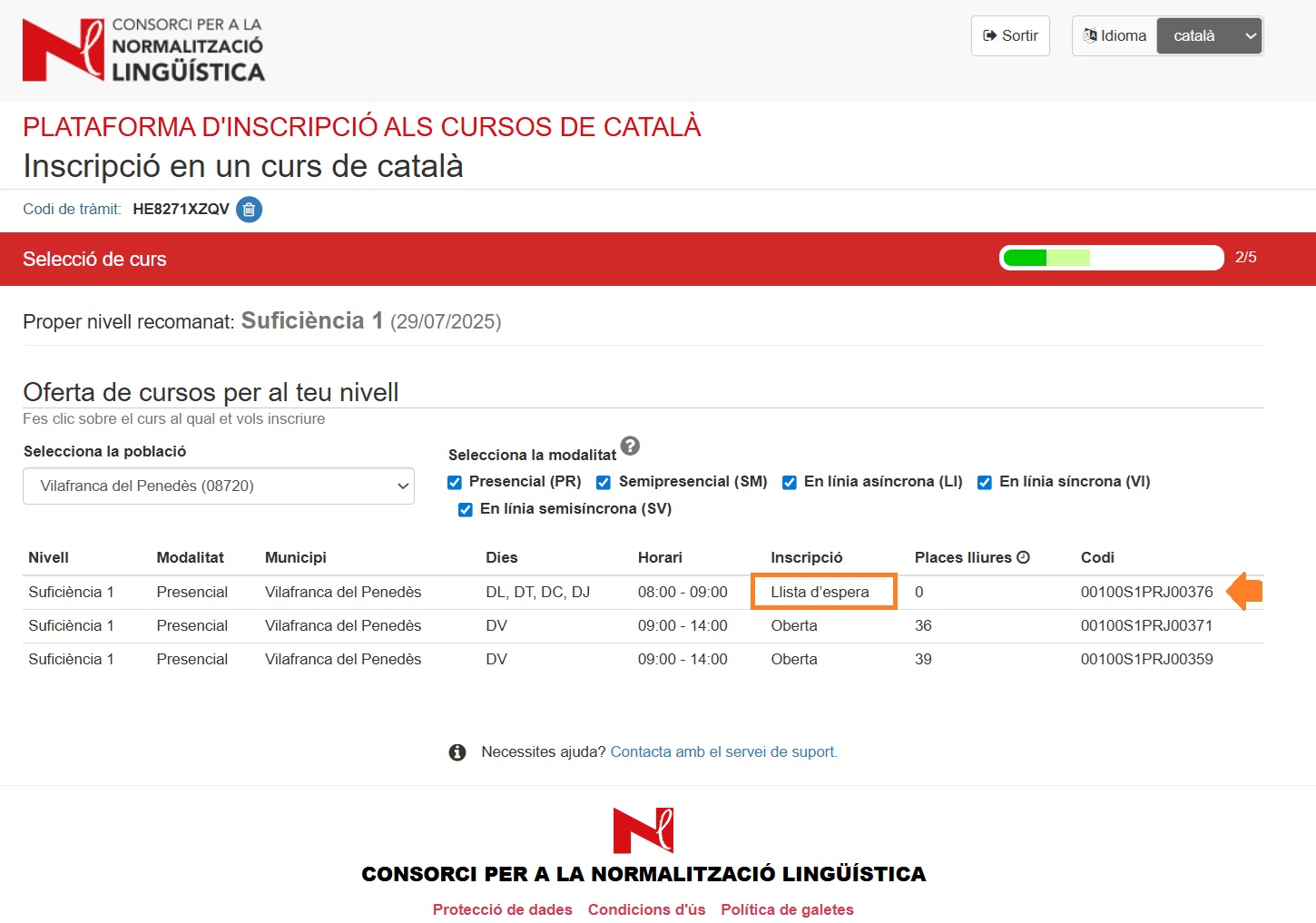
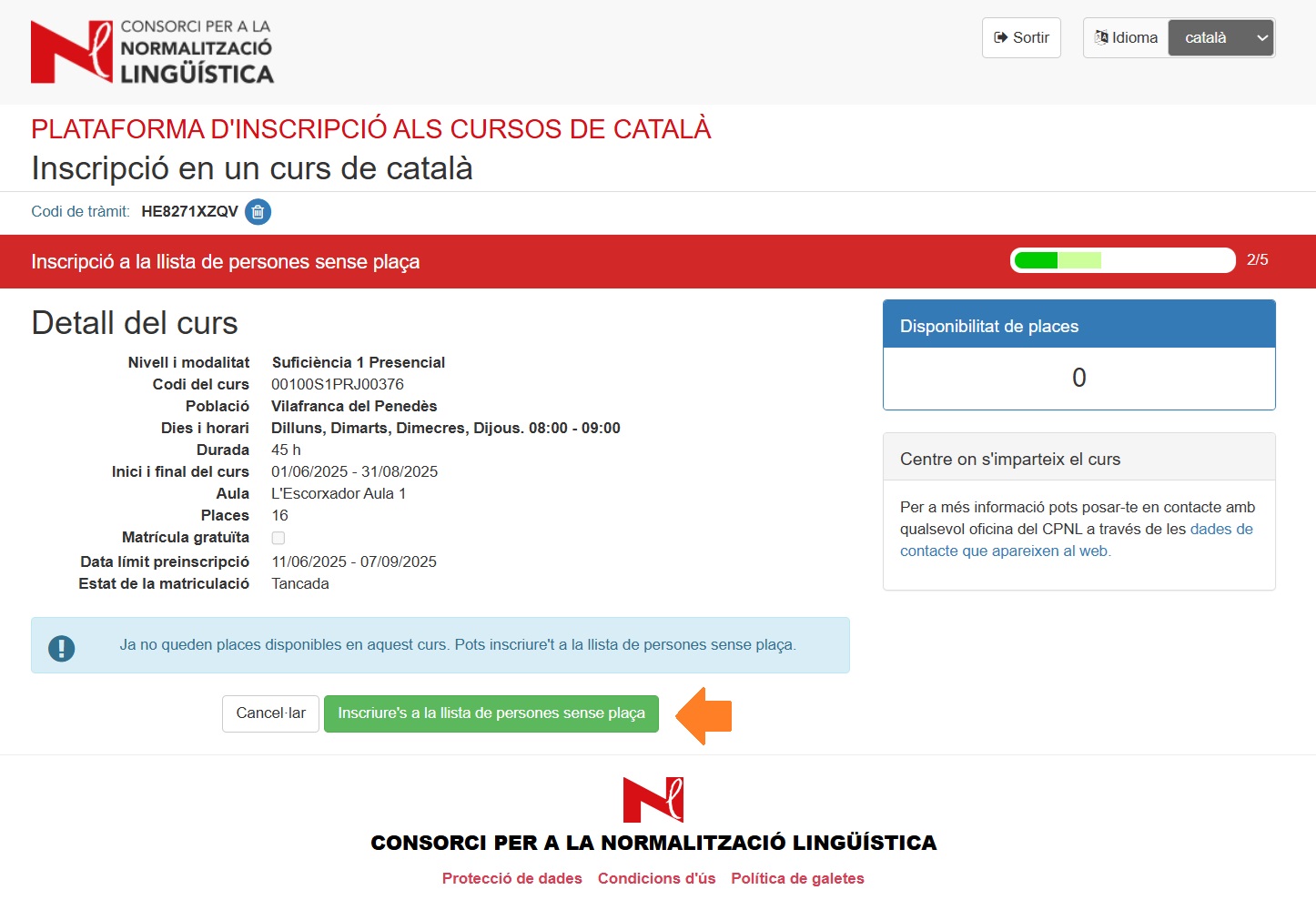
Click Register on the list of people without a place.
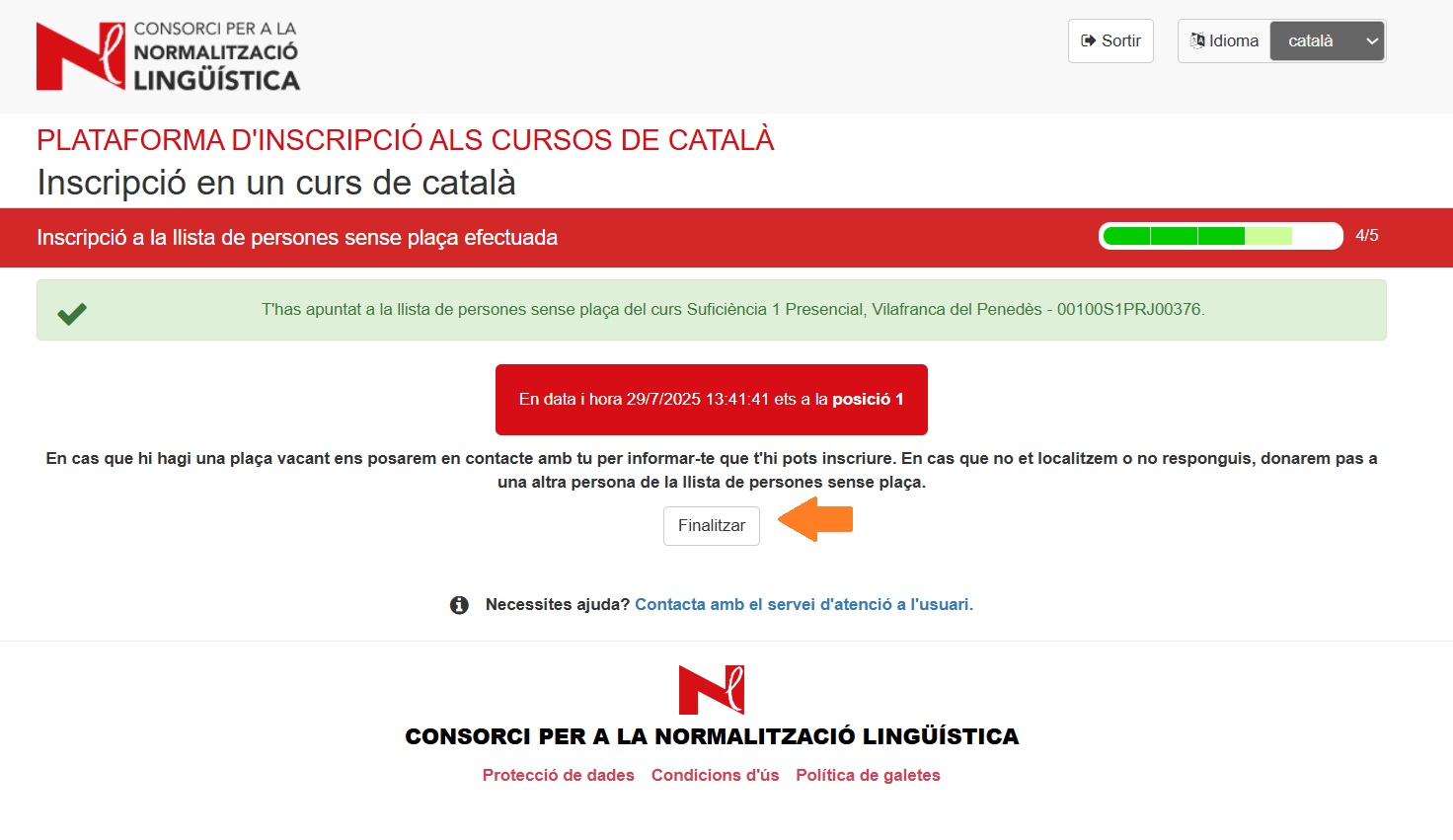
The next screen will show you your position on the list of people without a place for the course you've selected. Click Complete.
Need some help? Read our FAQs (frequently asked questions) or contact User Services.